
For creators
Fill in your bank details with Stripe
What Stripe asks for during payout setup, where to find each bank detail, and how to start over.
If you're paid by Stripe, setup happens on Studio → Payouts → Set up payouts inside Stripe's secure form. You stay on DaVinci Market the whole time, and your progress is saved as you go.
- Choose your country
Pick the country where you live and get paid. Stripe can't change it later, so check it before you continue.
- Confirm it's you
A small Stripe window sends a code to your email or phone. If nothing opens, allow pop-ups for davinci.market.
- Add your details
Your name, address and, if Stripe asks, a photo ID. Business accounts answer a few business questions too.
- Add your bank
The account where you want your earnings paid. The fields depend on your country; see the table below.
- Review and submit
Stripe usually confirms within a few minutes. Your status updates on the Payouts page, and any earnings waiting for you are sent once it's ready.
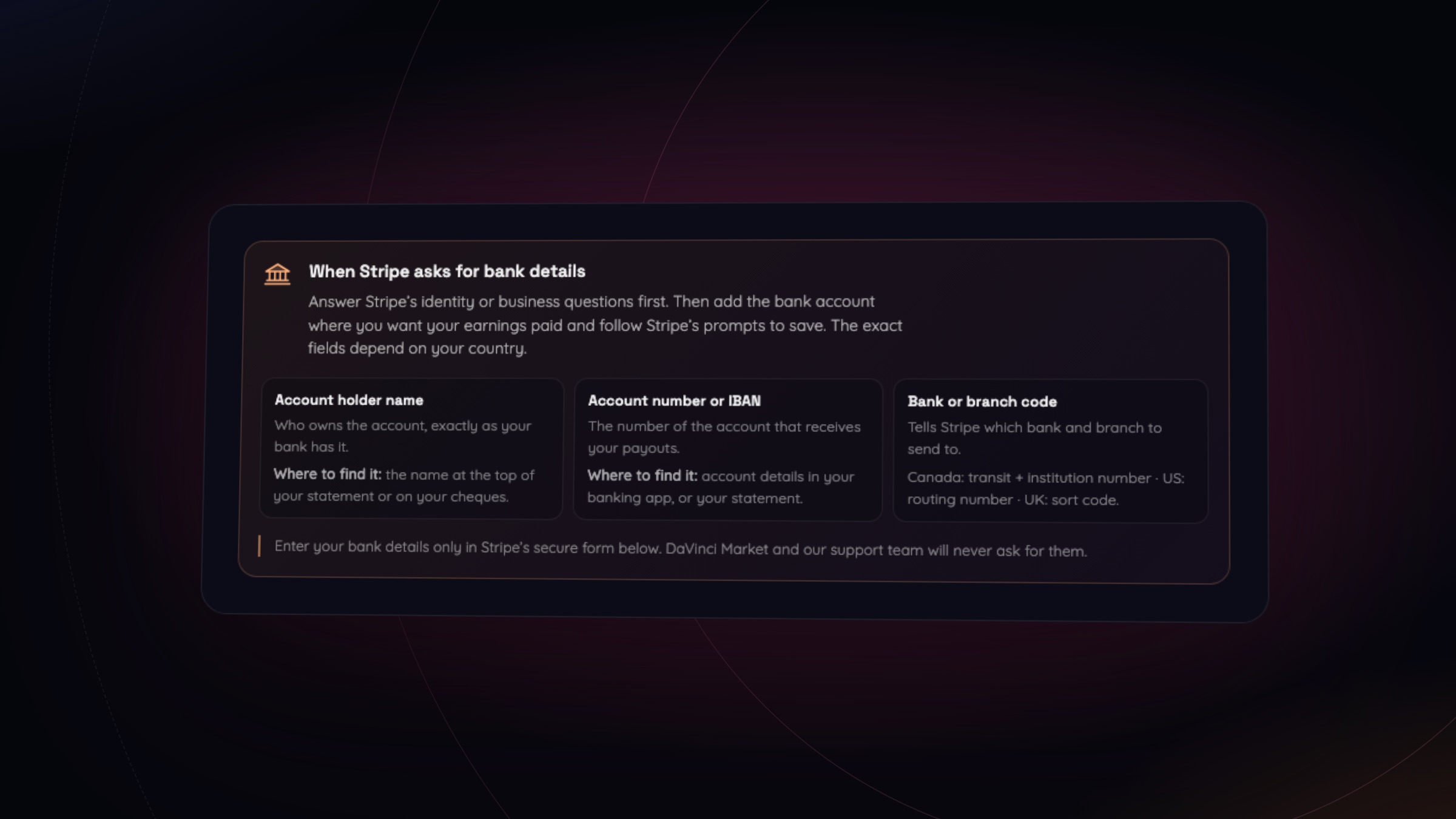
| Field | What it is | Where to find it |
|---|---|---|
| Account holder name | Who owns the account, exactly as your bank has it | The top of your statement or your cheques. Use a business name only for a business account. |
| Account number or IBAN | The account that receives your payouts | Account details in your banking app, or your statement. In Europe and the UK it's usually an IBAN, which starts with two letters such as DE or GB. |
| Bank or branch code | Which bank and branch to send to | Canada: 5-digit transit + 3-digit institution number. US: 9-digit routing number. UK: 6-digit sort code. |
If something goes wrong
I picked the wrong country
Before your payouts are active, choose Start from scratch on the setup page. Your unfinished Stripe details are discarded and you can choose your country again.
Once payouts are active, the country can't be changed there; contact us instead.
I don't know my bank codes
Ask your bank for your "direct deposit details"; banks share them on request. Stripe's help centre for payout accounts also explains each field.
I closed the form halfway
Come back to the setup page and choose Continue setup. Stripe saved your progress; finish the remaining steps and your payouts switch on.
Stripe doesn't support my country
See Set up payouts: the Payout Finder shows whether PayPal or another method works where you live.